Thank-you page for checkout extensibility
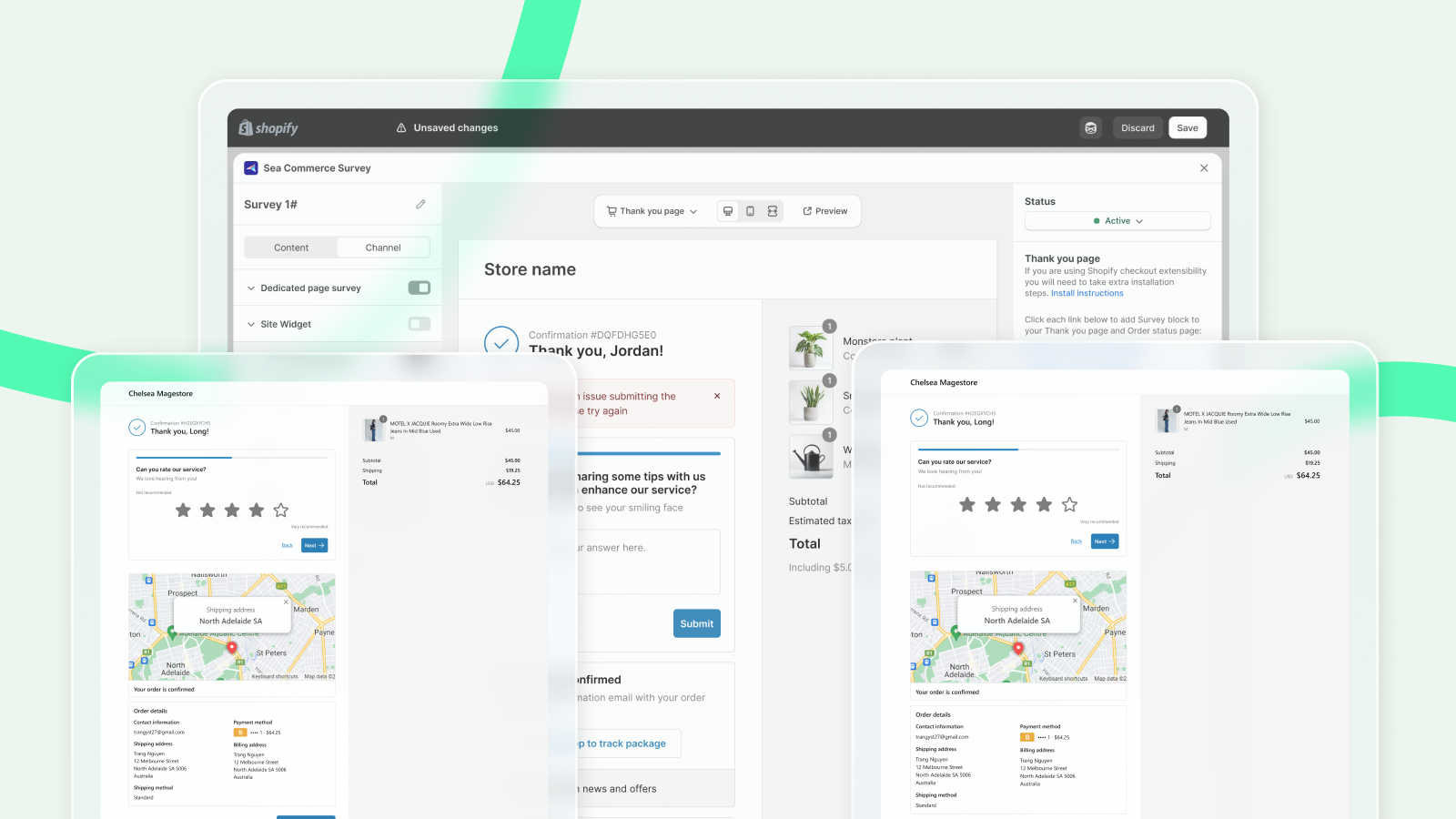
By placing surveys on key pages like the Thank you and Order status pages, you can engage customers at a critical moment when their experience is fresh in their minds.
In this section, we’ll explore how to effectively distribute surveys using SEA Survey. We’ll also cover how Checkout extensibility—Shopify’s customizable, app-based solution—enables you to seamlessly integrate surveys into your purchase journey, ensuring a smooth, branded experience for your customers.
This feature is only available for merchants using checkout extensibility (opens in a new tab) to manage their thank-you page and order status page.
What is checkout extensibility
Checkout Extensibility is a robust set of platform features designed to simplify customizing your checkout with app-based solutions that are upgrade-safe, high-performing, and seamlessly compatible with Shop Pay.
It enables you to create no-code customizations using apps and branding tools or leverage components and APIs to design fully tailored checkout experiences.
You can check the more details about Checkout Extensibility here (opens in a new tab).
How to set up thank-you and order status page survey
Below is the step-by-step guide to set up thank-you and order status page channels for your survey:
Get access to Thank you page channel
In the Channel tab, Thank you page is the first channel in the list. Switch the toggle to turn it on or off.
Set up user targeting
You can choose to targeting your survey to groups of users
- All users: Display the survey to all site visitors.
- A segment of users: Limit survey visibility to users tagged within a specific segment.
- By user tag
- New customers
- Customers who haven't placed any orders in your store
- Customers filling surveys without logging in (treated as new customers by default)
- First-time buyers at checkout (identified by email address)
- Returning customers
- Customers with at least one completed order in your store
- Identification based on email address matching previous orders
- Logged-in customers with order history
Choose display type
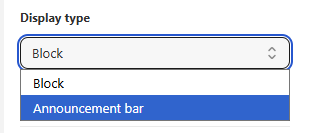
You can choose to place your survey in post-purchase page in the form of a Block or an Announcement bar.
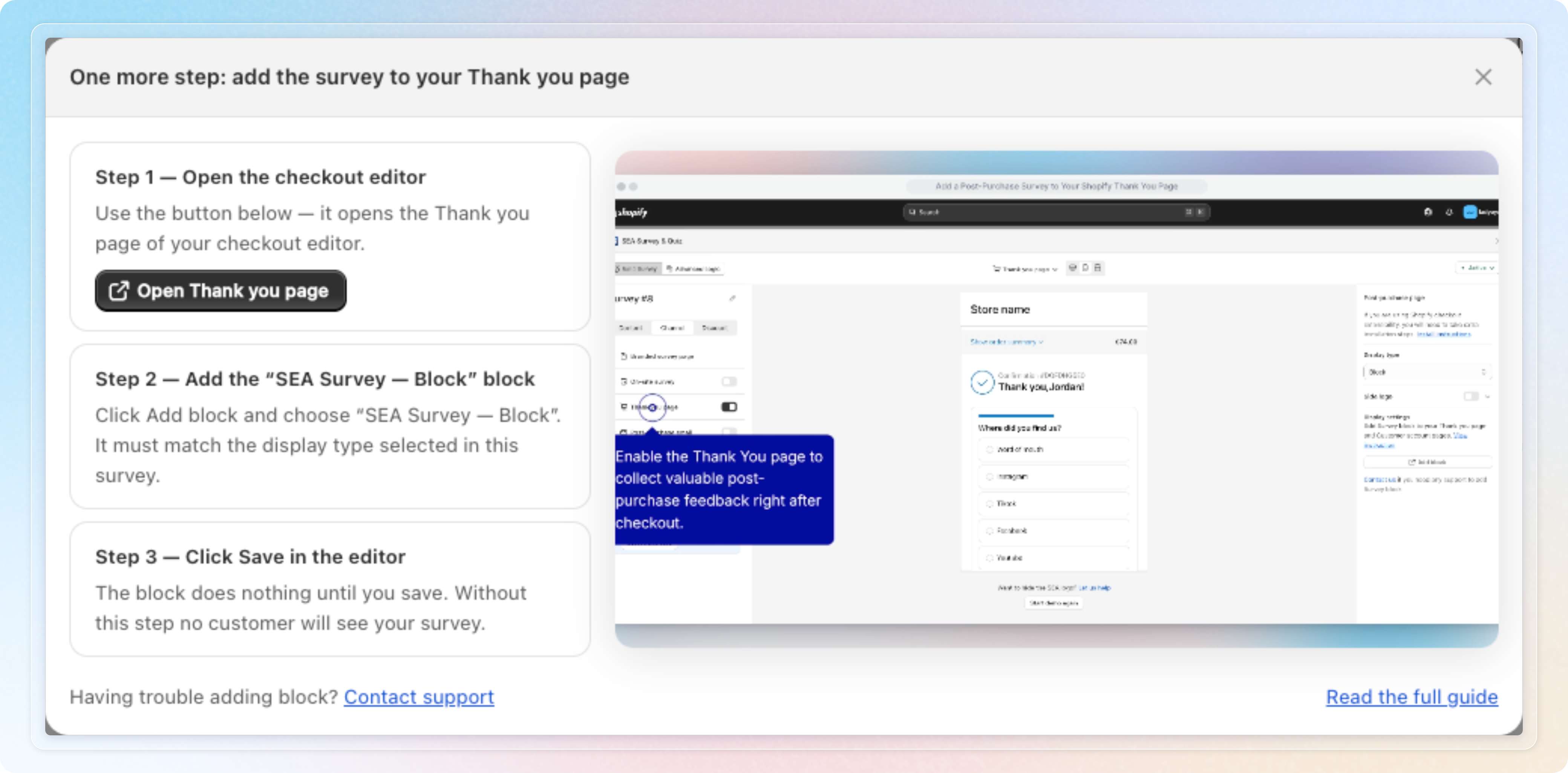
Follow the in-app guide
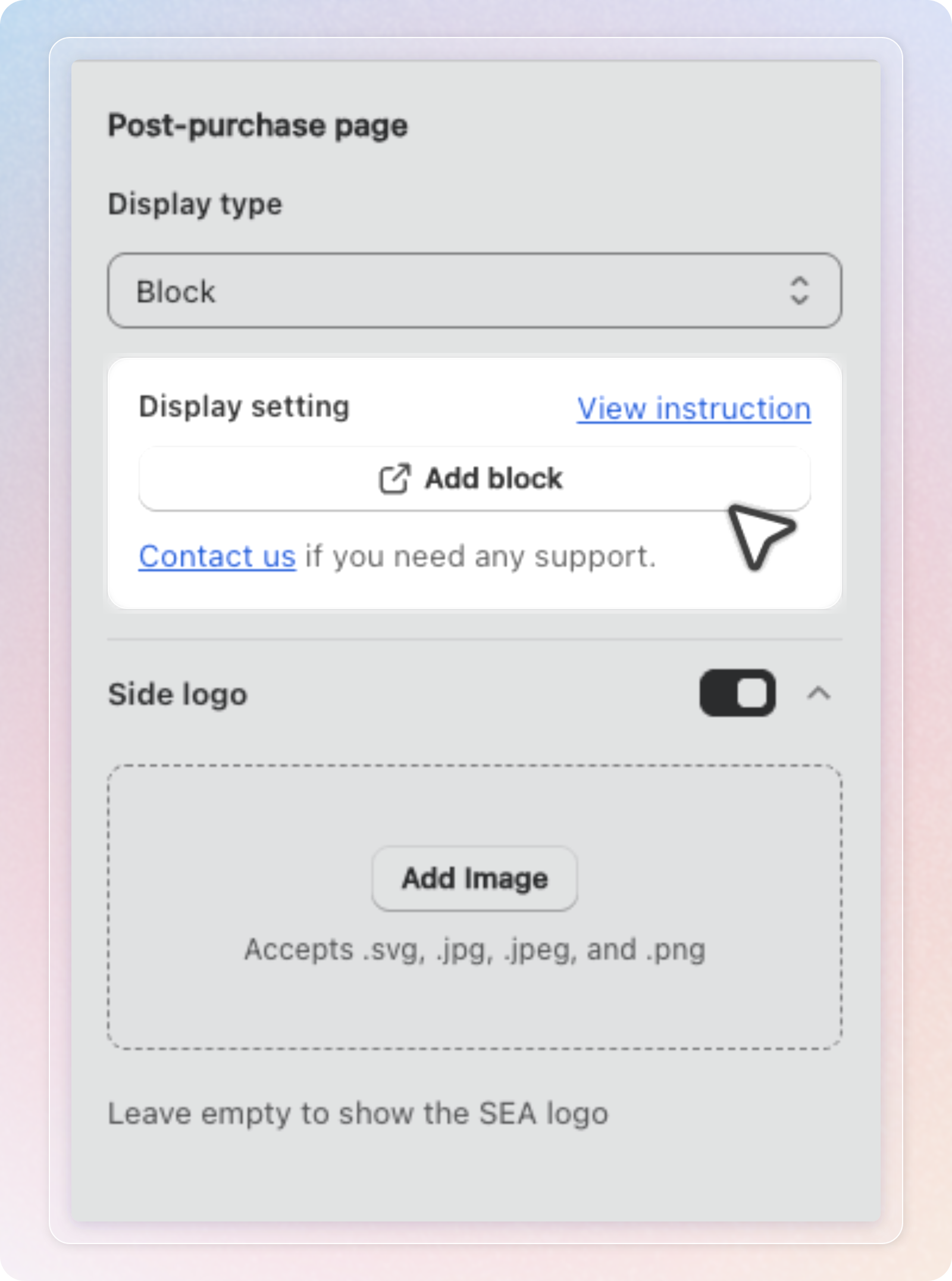
The Display setting card under the display type gives you two shortcuts:
- View instruction opens a guide inside the app. It shows three steps: open the checkout editor, add the block, click Save. It also plays a short video for your display type.
- Add block opens the Thank you page of your checkout editor in a new tab.
The guide also opens by itself the first time you save a survey with Thank you page turned on. It opens again when you switch between Block and Announcement bar and save. It stops opening once your store has received a response from the Thank you page. Closing it does not mark anything as done. Only a real response does.
Add a Survey Block
Select Block as the display type. Then click Add block to open your Thank you page in the checkout editor. Click the + button and select the SEA Survey — Block block. Drag it to your preferred position in the Sections area.
You need to Save twice to get the survey visible to customers:
Savefrom SEA Survey after setting upSavein the checkout editor after placing the survey block
Add a Survey Announcement Bar
Select Announcement bar as the display type. You can customize the bar text under Content (default: "We'd love to hear your feedback!") and the button label under Button text (default: "Take a quick survey").
Then click Add block to open your Thank you page in the checkout editor. Click +, select the SEA Survey — Announcement bar block, and save.
You need to Save twice to get the announcement bar visible to customers:
Savefrom SEA Survey after setting upSavein the checkout editor after placing the block
If the survey stays silent
A Thank you page survey that runs for seven days with orders but no responses gets one reminder. You receive an email, "A quick check on [survey name]", with a checklist of what to verify. Home shows a banner for the same survey with a Walk me through it button that opens the guide. Close the banner with the X when you are done.
The reminder is sent once per survey. If your store had no orders in that week, nothing is sent.
That's it! Now your customers can freely share their thoughts on the whole shopping experience and what led to their buying decision.