How to branch your survey and end each path on its own card
Advanced Logic turns a fixed list of questions into a survey that branches. Each answer can send the shopper down its own path. Each path can finish on its own thank-you card.
Advanced Logic runs on the Growth plan and higher. On a lower plan your rules stay saved but do not run. The canvas shows an Advanced Logic is paused banner. Stores that installed SEA Survey before 5 September 2025 keep Advanced Logic on every plan.
Prerequisites
- Your store is on the Growth plan or higher, or it installed SEA Survey before 5 September 2025.
- Your survey has at least one question.
What you can build
| Goal | What you set up |
|---|---|
| Ask fewer, better questions | A rule that skips ahead when an answer makes later questions pointless |
| Close each path with its own message | Several endings, one per branch |
| Split promoters from critics | A rating condition such as is greater than 3 |
| Act on an answer yourself | A rule that tags the customer or order, or posts to Slack |
Open the logic canvas
- Go to Surveys & quizzes and open your survey.
- Click the Advanced Logic tab beside Build Survey.
The canvas draws the whole flow left to right. Every arrow points right, so a card further right is always a later step.
Use Logic apply to in the toolbar to switch views. Customer rules change the shopper's path. Merchant rules post to Slack.
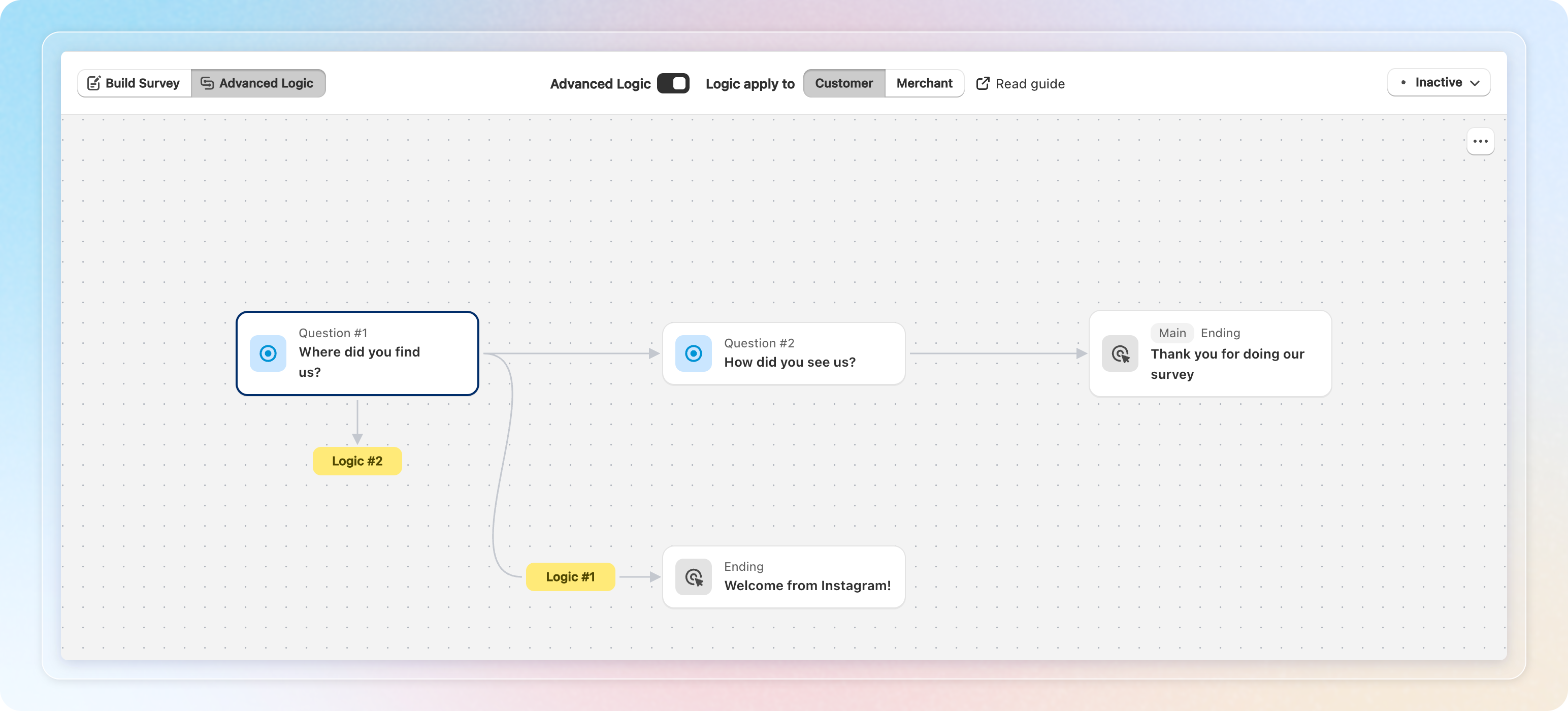
Read it lane by lane:
- The top lane is the default journey. It is the path a shopper takes when no rule matches. It follows the same order as Build Survey, and its arrows are drawn heavier.
- Each rule that routes shoppers off that path drops to a lane of its own. Lanes are numbered in the order the branches leave.
- A branch that lands on a question already on the canvas draws an arrow to that card. The rest of the survey is not drawn twice.
- Rules that only tag or notify route nobody. They hang under their question instead of taking a lane.
Cards come in three kinds: a question, a rule pill, and an ending. Click a rule pill to see what the rule does, with Edit and Delete below it.
Use Zoom in, Zoom out, and Auto-arrange at the bottom left of the canvas to move around. Auto-arrange snaps every card back to the default layout. It discards positions you dragged by hand.
Create an ending
An ending is one thank-you card. Every survey has one to start with, and you can add as many as you need.
- Open your survey and stay on Build Survey.
- Find the ENDINGS block under the content tree.
- Click Add ending.
- Under Complete survey, choose Default, External link, or Do nothing.
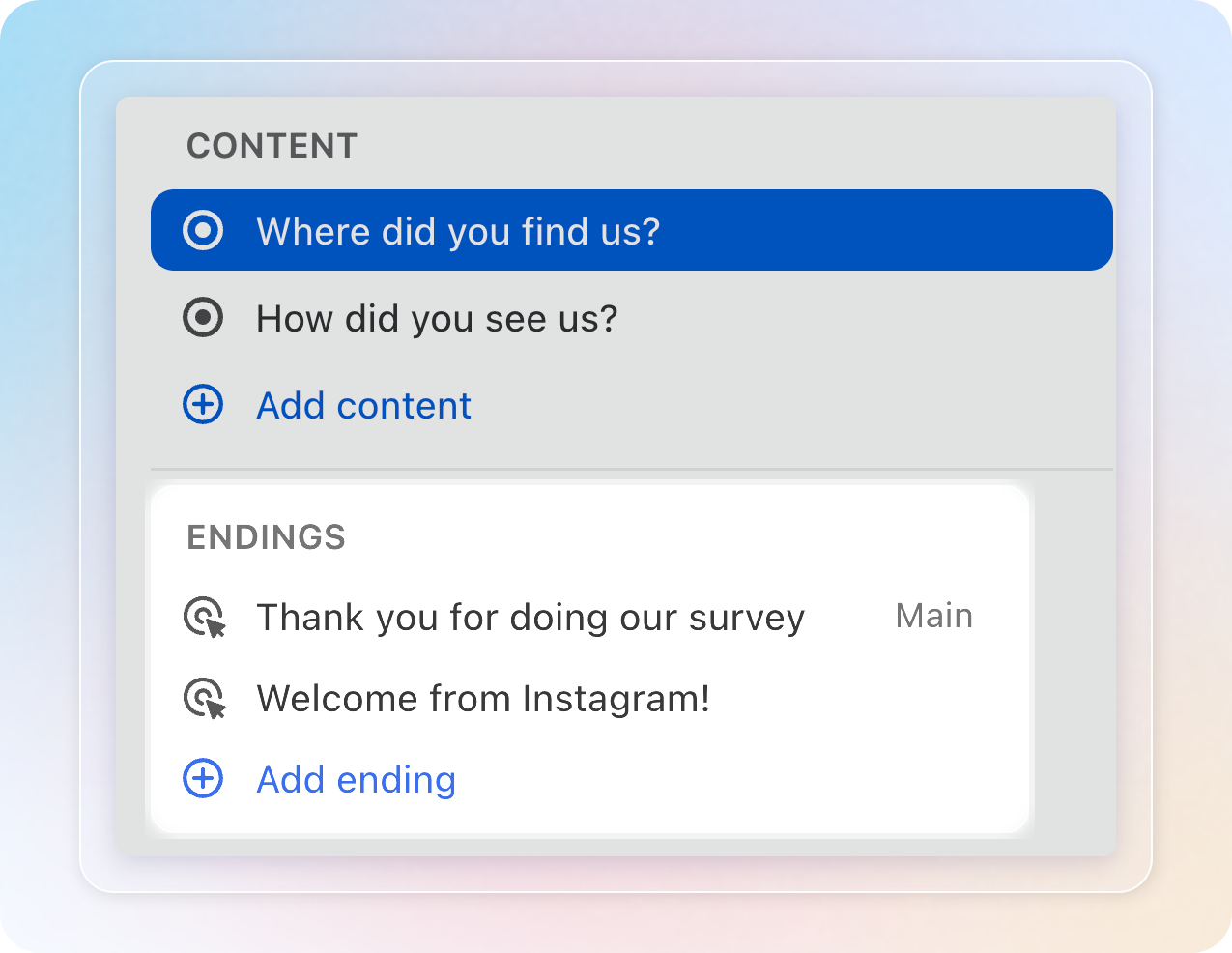
Default shows a card inside the survey, with Heading and Description fields. External link sends the shopper to a page of yours and shows a Link field. Do nothing closes the survey without a card.
The editor names each ending after its Heading. An ending with no heading yet reads Untitled ending.
Below Growth, Add ending shows a lock and opens the upgrade prompt. Stores that installed SEA Survey before 5 September 2025 see no lock.
The Main badge and the row menu appear once a survey has two or more endings. With one ending there is nothing to choose between.
Open the row menu on an ending for Set as main and Delete ending. Every survey keeps exactly one main ending, so the main card has no Delete ending. Promote another card first, then delete the old one.
Send a branch to an ending
- Open the Advanced Logic tab and click the question you want to branch from.
- Click Add new logic, then choose End survey under THEN.
- Open the Thank-you card (ending) list and choose the card for this branch.
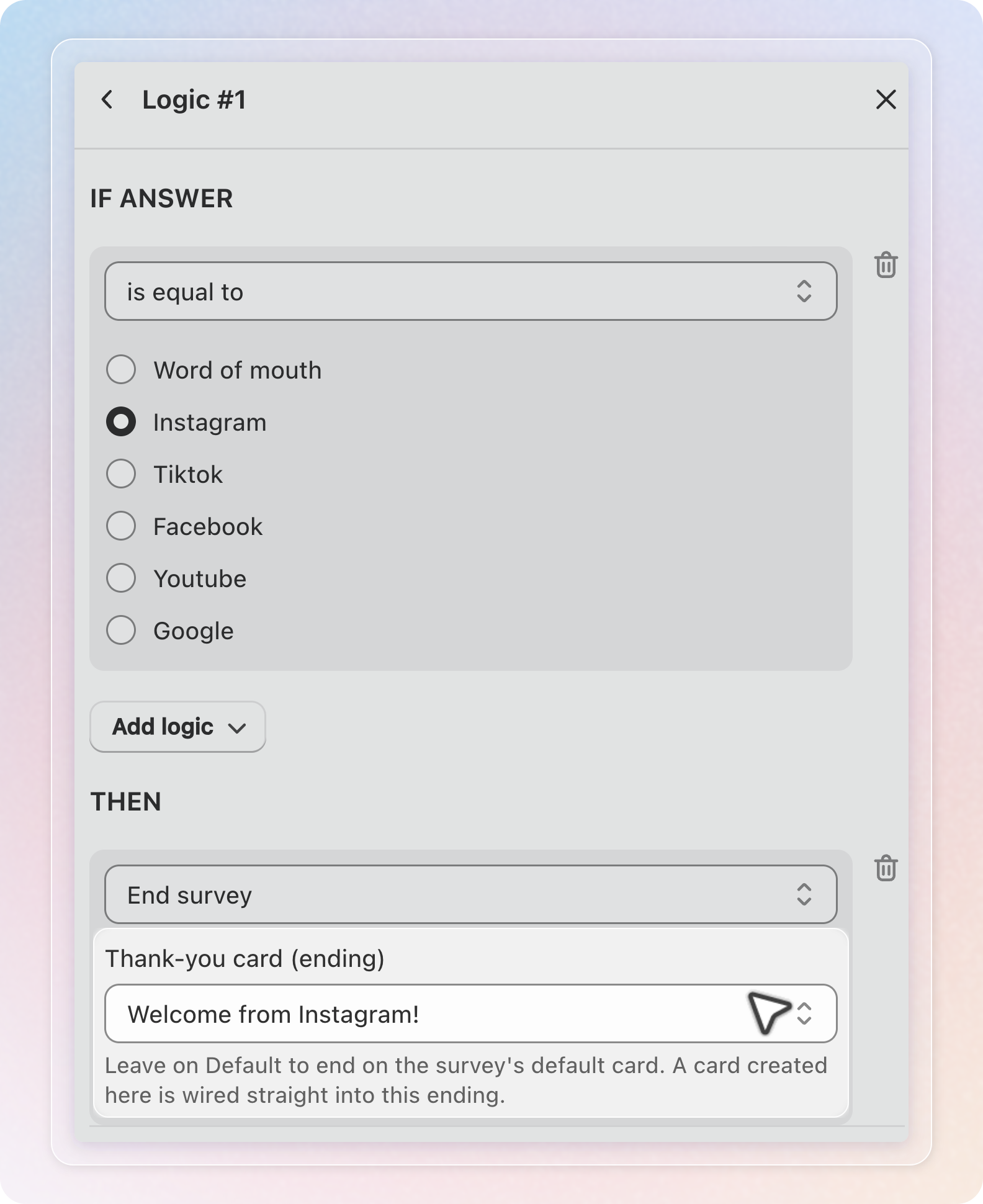
Leave the list on Default thank you and the shopper finishes on your main ending. Pick a card and only that branch finishes there.
The list also holds Create new thank-you card. This opens New thank-you card. Choose the Ending type, fill in Heading and Description, then click Create.
The new card is wired into the rule you are editing. You never leave the rule to make one.
A rule with no card, or a rule whose card you later delete, falls back to the main ending. Shoppers never get stuck.
Route shoppers by their rating
Rating questions accept is greater than and is less than. Both compare strictly, so is greater than 3 does not include 3 itself.
On a 1 to 5 scale, two rules split the whole range. Use is greater than 3 and is less than 4. No rating falls into both, and none falls outside.
You pick the value from a list built from the question's own scale. A threshold off the scale is not possible.
| Question type | Scale |
|---|---|
| Number scale | 1 to 10 |
| Star rating | 1 to 5 |
| Satisfaction | 1 to 5 |
Which conditions each question type accepts
| Question type | is submitted | is blank | is equal to | Include any | Does not include any | is greater than | is less than |
|---|---|---|---|---|---|---|---|
| Single choice | Yes | Yes | Yes | Yes | No | No | No |
| Multiple choice | Yes | Yes | Yes | Yes | Yes | No | No |
| Number scale | Yes | Yes | Yes | No | No | Yes | Yes |
| Star rating | Yes | Yes | Yes | No | No | Yes | Yes |
| Satisfaction | Yes | Yes | Yes | No | No | Yes | Yes |
| Short answer | Yes | Yes | No | No | No | No | No |
| Date | Yes | Yes | No | No | No | No | No |
| Consent email | No | Yes | Yes | No | No | No | No |
| Text & Image | Yes | Yes | No | No | No | No | No |
| Yes | Yes | No | No | No | No | No | |
| Upload | Yes | Yes | No | No | No | No | No |
Fix issues before you save
The toolbar shows a chip counting the problems in your flow. Click it to open the issues panel. Every line has a Fix → link that jumps to the spot.
The chip shows only in the Customer view, and only when your flow has at least one issue.
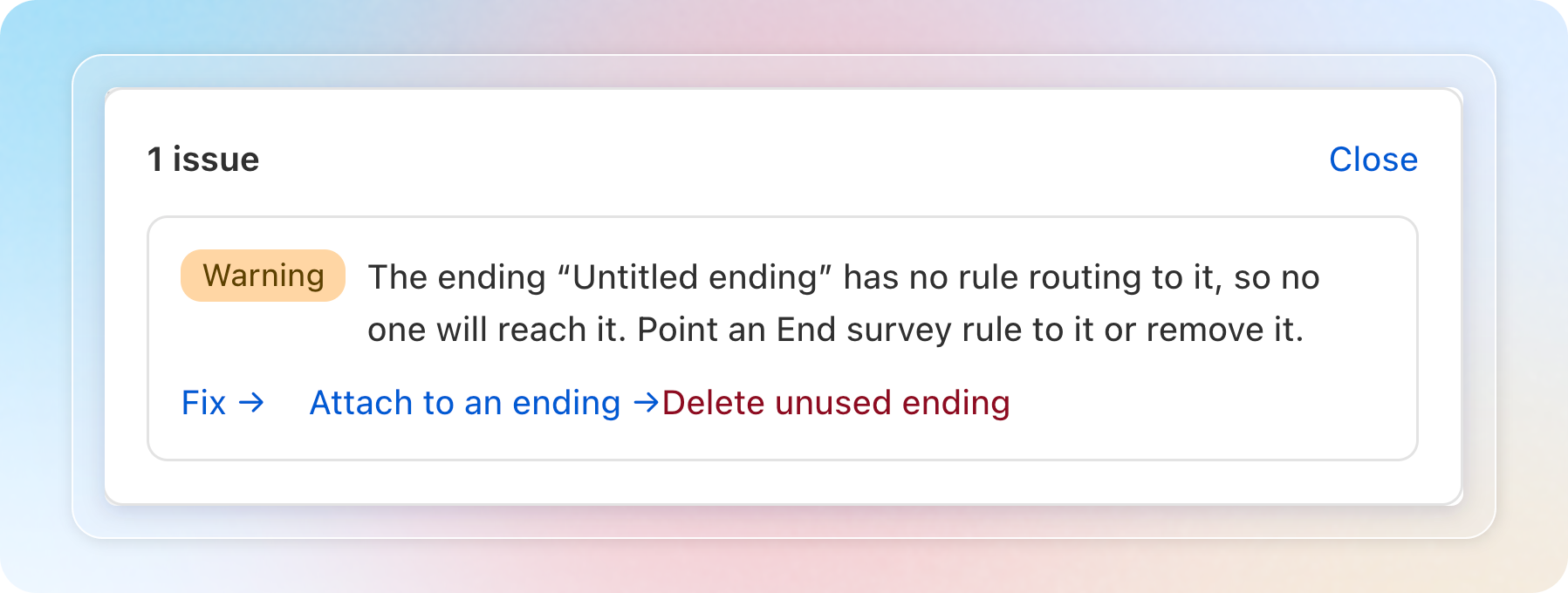
These errors block the save:
- Two rules on one question share a condition but send shoppers to different places.
- A rule can never run, because an earlier rule already routes every response away.
- A condition is missing its value.
- An action is missing its destination.
- A rule skips back to an earlier question, which would loop.
- A rating sits outside the question's scale.
These warnings let you save anyway:
- An ending no rule points to. Nobody reaches it. The panel offers Attach to an ending → and Delete unused ending.
- A question no response path can reach.
To start a question over, open the menu on its card and choose Reset logic for this question.
To clear the whole survey, set Logic apply to to Customer. Click the ⋯ button at the top right of the canvas. Choose Clear all logic…. Click Clear all logic in the modal to confirm. This removes every Customer rule and collapses the survey back to one ending. Merchant rules that post to Slack stay. The modal tells you how many extra endings go with it, and the change cannot be undone.
Pause Advanced Logic
The Advanced Logic tab has an Advanced Logic toggle in its toolbar. Turn it off and your rules stay saved but stop running. While it is off, the canvas is read only.
Grouping questions into a section pauses logic too, because a section shows several questions on one screen. The canvas explains this with a banner and offers Manage sections. The toggle is locked off while the survey has a section.
While logic is paused, every shopper answers the questions in order and finishes on the main ending. Break the section on Build Survey to bring your rules back.
What shoppers see
A shopper answers, one of your End survey rules matches, and the thank-you card for that branch appears. When no rule matches, they reach the main ending.
This works the same on your storefront and on the thank-you page after checkout.
Measure which ending shoppers reach
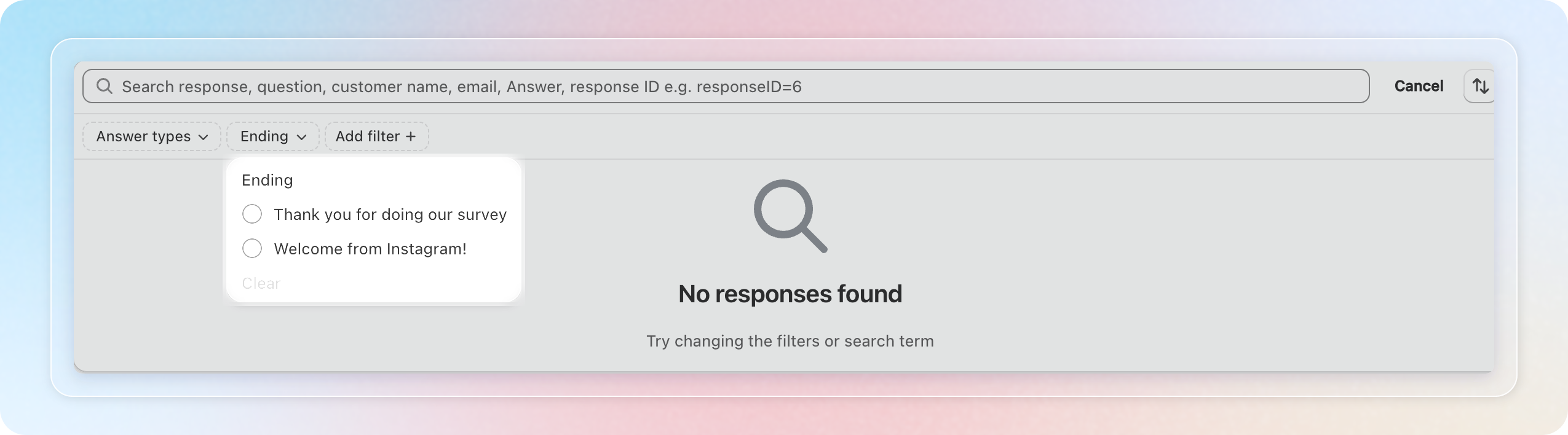
Every response records the ending it finished on. Once a survey has two or more endings, you get an Ending filter in two places:
- Responses. Pick the survey, click Add filter, then choose Ending.
- Analytics, under Basic analytics.
Once a response finishes on an extra ending, the Responses table adds an Ending column. That response's details show the card under Ended on.
When you export responses, tick Separate sheet per ending to split each survey into one sheet per card. Separate sheet per ending works for survey exports on Growth and higher. Stores that installed SEA Survey before 5 September 2025 can use it on any plan.
Before you downgrade
Moving to Free or Starter deletes every logic rule, even for stores that installed SEA Survey before 5 September 2025. It also collapses the survey back to a single default ending. This cannot be undone. The downgrade modal tells you how many surveys it affects, so check that number before you confirm.
Tips
- Sketch the branches before you build them. The canvas is easier to read when the default journey is the path most shoppers take.
- Give each ending a heading straight away. The heading names it everywhere else, and Untitled ending tells you nothing in a rule list.
- Cover a rating scale with two rules, not three. is greater than 3 and is less than 4 leave no gap on a 1 to 5 scale.
- Clear the warnings as well as the errors. An ending nobody reaches is usually a rule you forgot to point at it.
- Check the Ending filter after a week. If one branch takes almost every shopper, your conditions are looser than you meant.