Dashboard
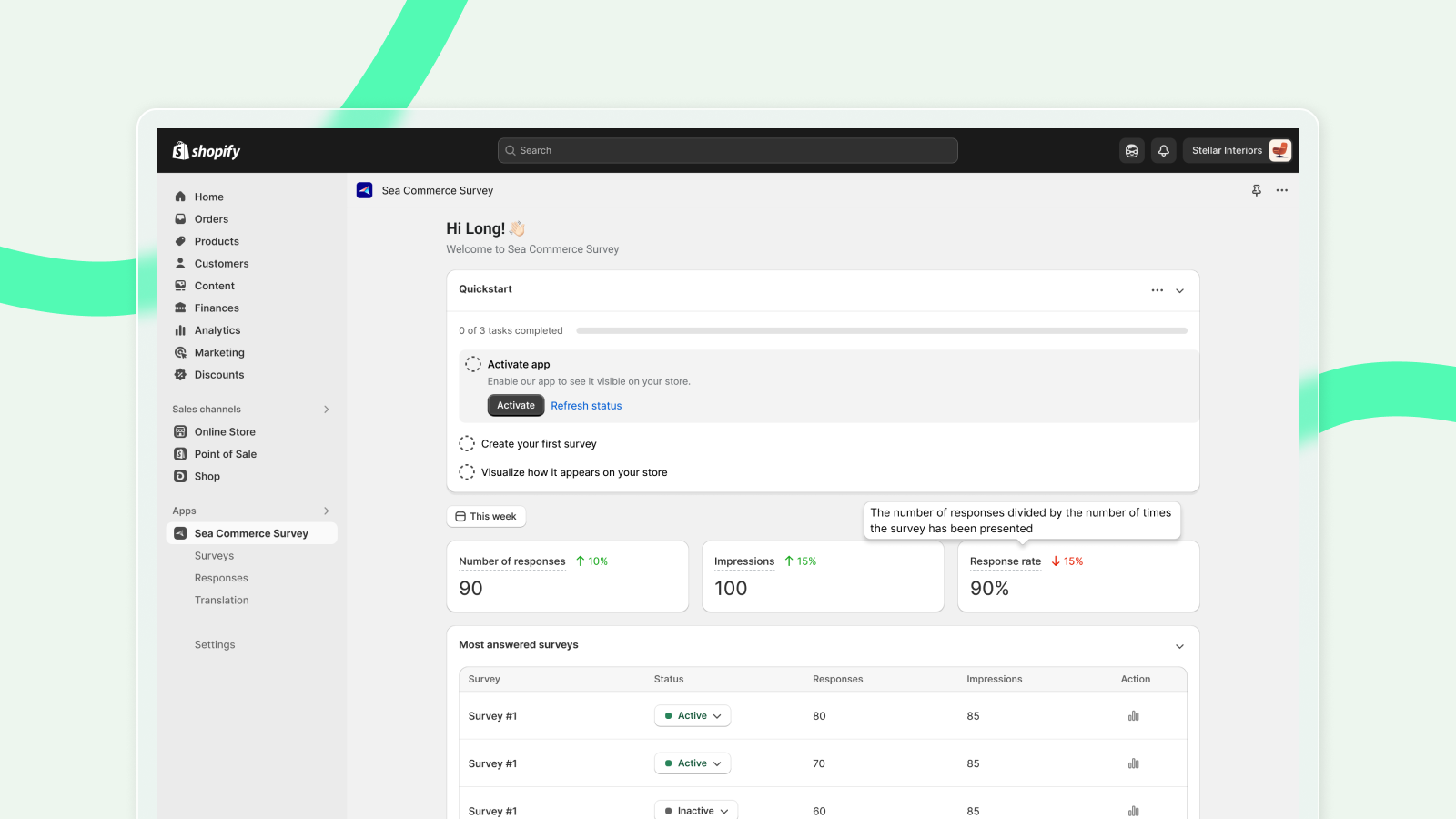
Dashboard is the central hub of the SEA Survey app, designed to give you a quick and clear overview of your survey activities.
Here, you’ll find the Quickstart Guide, which helps new users set up their first survey in a few easy steps, as well as General metrics that highlight key performance indicators like responses, impressions, and response rates. And many more!
Whether you're a beginner or an experienced user, Dashboard keeps you informed and ready to take action!
Quickstart
Quickstart is where you are guided to set up the app for the first time quickly and easily. Follow these three steps to get started:
Activate app
Enable the app to make it visible on your store. Simply click the Activate button to turn it on. Once done, you can click Refresh to ensure the app is active.
Create your first survey
Start gathering insights by creating your first survey. Click Create with AI to let AI draft one, or Create manually to start from a template.
After you save a survey that AI created, this step states where it will appear. For example, "Your survey will show right after customers check out." Click Change where it shows to open the channel settings.
Visualize how it appears
See how your survey looks to customers on your store. This step is ticked only when a shopper can really see a survey. That means one of two things. A response has arrived from the Thank you page, an on-site survey, or an exit intent survey. Or an on-site or exit intent survey is active while the app embed is on.
The buttons change with your setup. Activate survey shows while no survey is active. Add Thank-you page block shows until the block is detected on your Thank you page. View on store is always there. The checklist re-checks every minute while it is open.
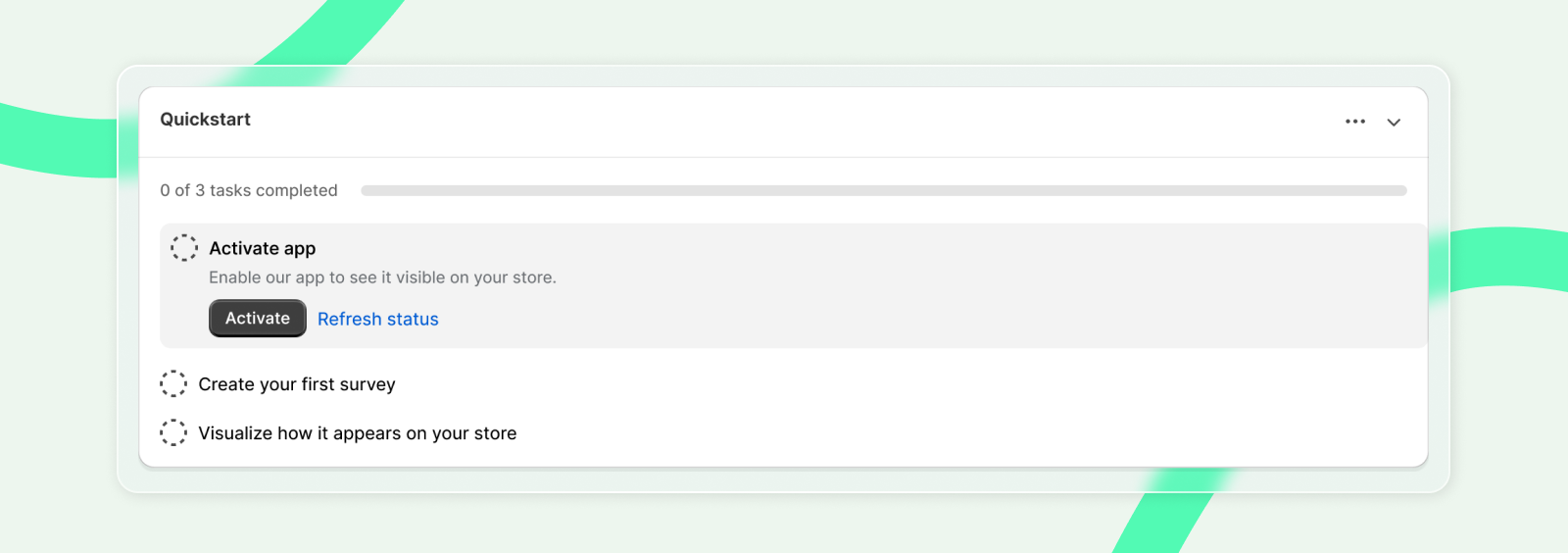
That’s it! These three steps will get you up and running with your first survey in no time.
Silent survey reminder
A Thank you page survey with orders but no responses for a week triggers a banner above the checklist. It names the survey and offers Walk me through it. That button opens the guide for adding the block to your Thank you page. Close the banner with the X.
General metrics
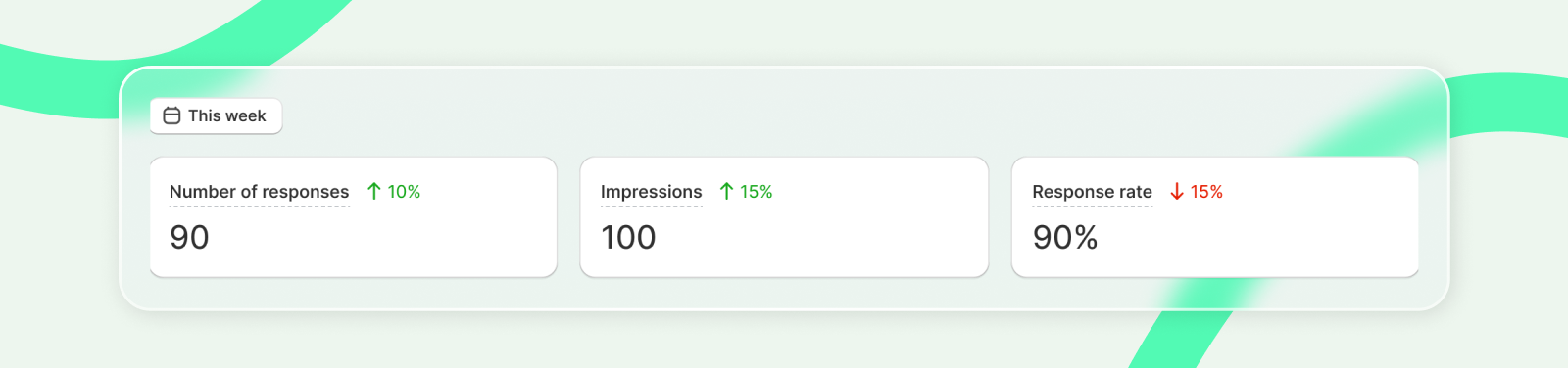
The General Metrics section provides a quick overview of your survey's performance, including key insights like the total number of responses, impressions, and the response rate. This allows you to easily track engagement and measure the effectiveness of your surveys at a glance.
First, you can choose to see your metrics in This week, Last week, This month or Last month.
After choosing the preferred time range, below are some metrics that you can see from dashboard.
- Number of responses
- Impressions: This metric is counted differently in 4 channels
- Dedicated page survey: 1 impression is counted each time a customer opens or refreshes the survey link.
- Site widget: 1 impression depends on the survey's channel settings (Whether it's Only once or Every time if the survey is not completed)
- Post-purchase page: 1 impression is counted each time a customer refreshes the post-purchase page displaying the survey (including the thank-you page and order status page).
- Post-purchase email: 1 impression is counted each time a customer opens or refreshes the email.
- Response rate: The number of responses divided by the number of times the survey has been presented
Response rate = (Number of responses/Impressions)*100%
- Increase/Decrease: This is the comparison between the chosen week/month and its previous week/month
Example:
Metric: Impressions
Time range: This month (November)
Increase: A%
A** = (Impressions in Nov - Impressions in Oct) /** Impressions in Oct
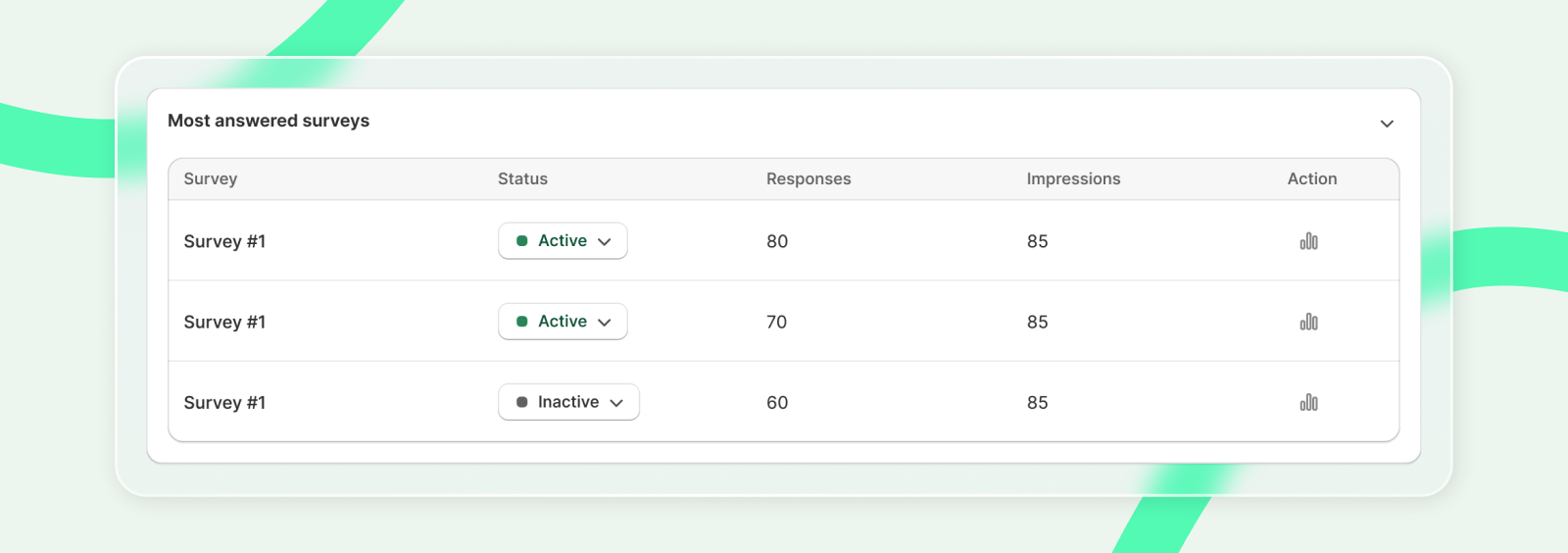
Most answered surveys
This part will show you the 3 surveys with the highest number of responses. This list may change any time you reload this screen.
Recent answers
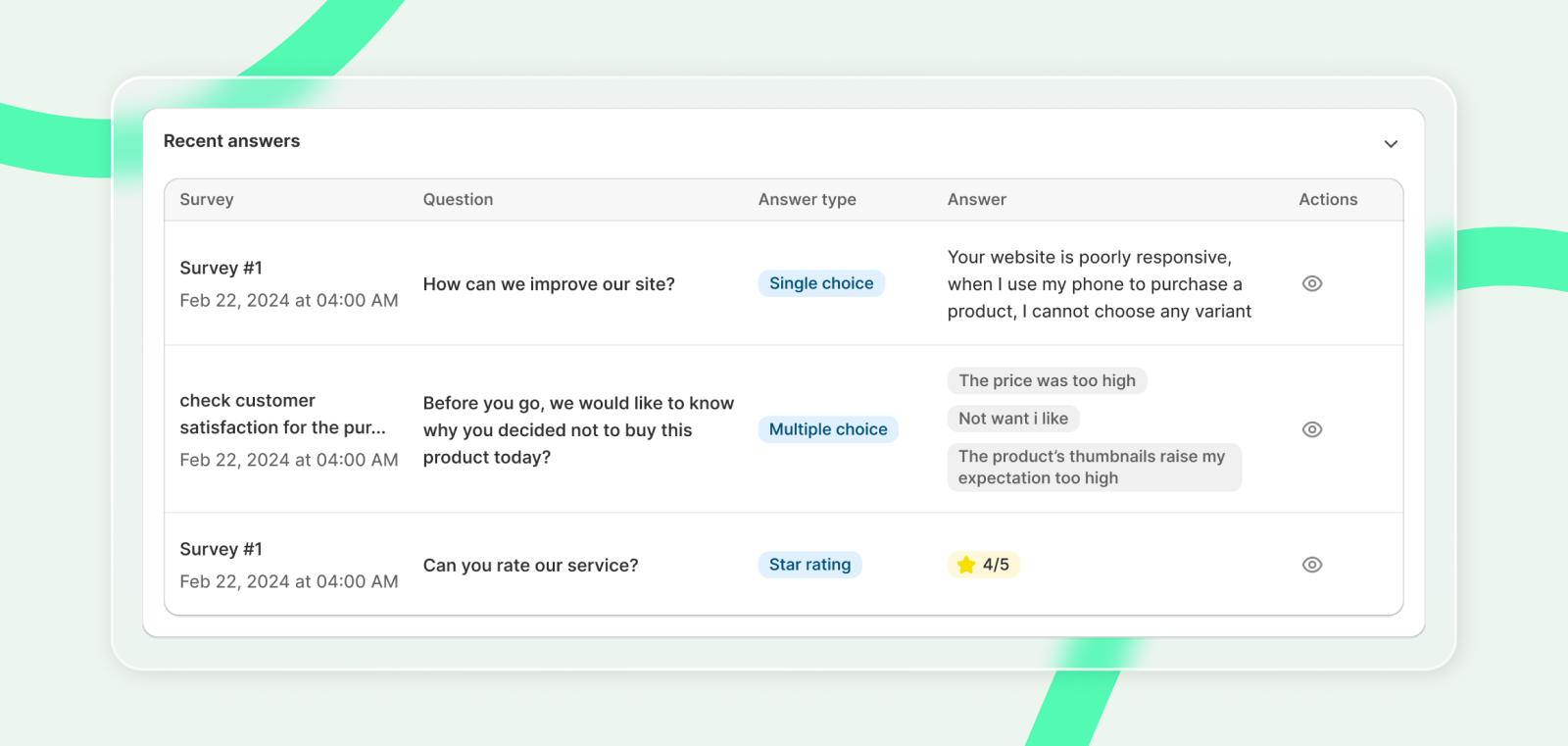
This part will show you the 3 most recent valid answers. This list may change any time you reload this screen.
Helpdesk
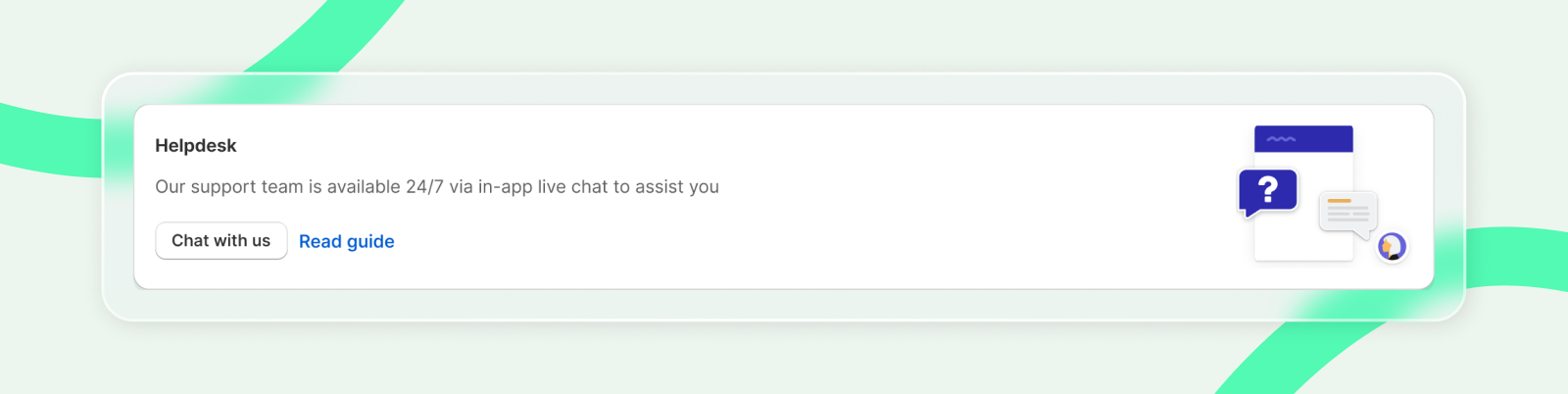
Helpdesk is where you meet us!
You can choose to Chat with us, in which one of our team members will be live for you 24/7 to resolve any questions on your mind.
Or you can Read guide if that's just enough for your!
To wrap up
The Dashboard is your go-to space for managing and tracking your survey activities effortlessly.
With tools like the Quick Start Guide to get you started and General Metrics for valuable insights, it ensures you stay organized and informed.